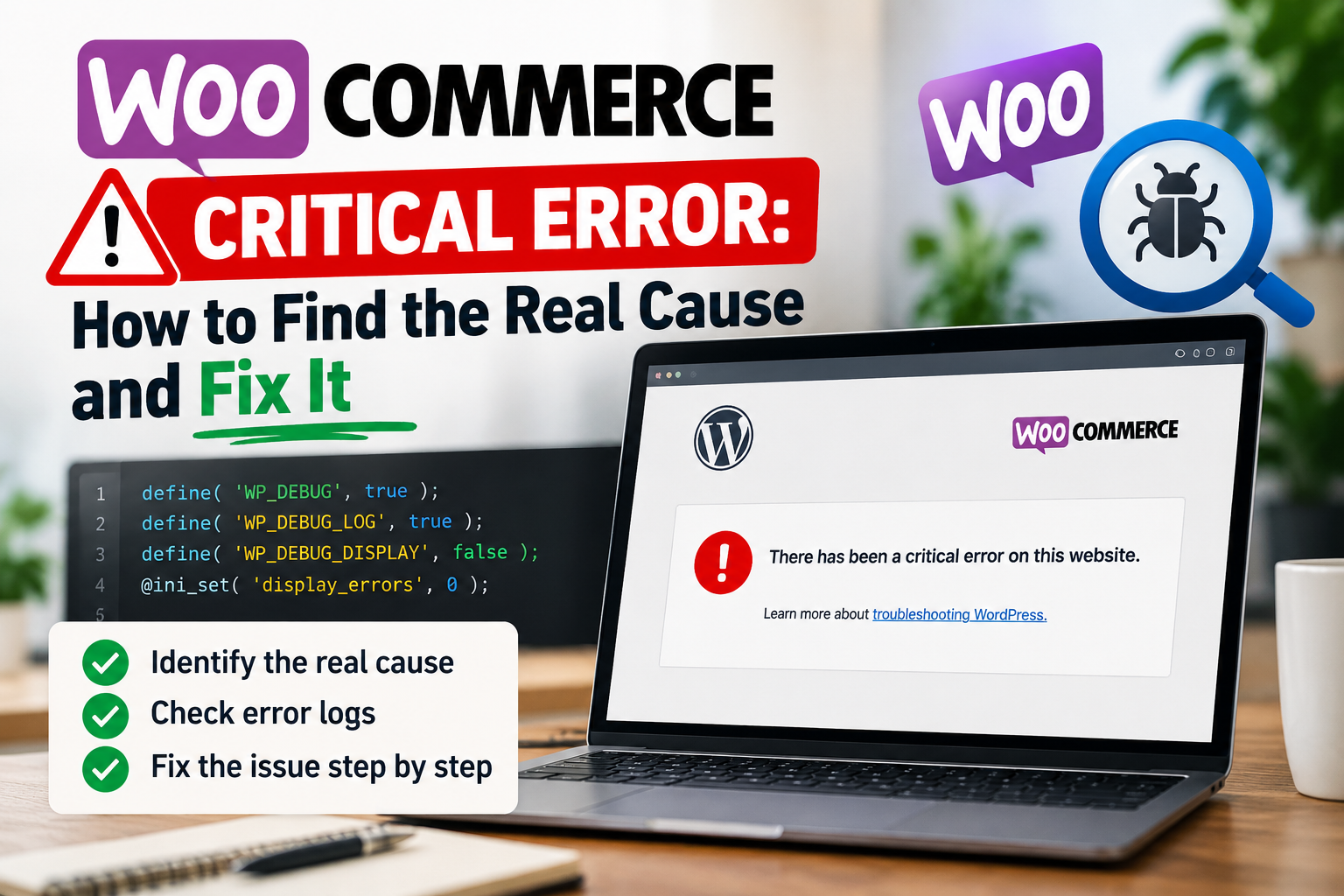
You open your store, and instead of products you get one grey line of text: “There has been a critical error on this website.” No menu. No checkout. Sometimes not even the admin area. If you run a shop, that line costs you money every minute it stays up.
I’ve been fixing WordPress and WooCommerce sites for more than ten years, and this message is the one store owners panic about most. I get it. It looks final. It isn’t. A WooCommerce critical error almost always has one specific cause, and WordPress writes that cause down somewhere. Your job is to find where.
This guide walks through the same order I use to fix WooCommerce critical error pages on client sites. It starts with the safe checks, then reading the logs, then the usual suspects: a WooCommerce plugin conflict, a theme template, the PHP version, memory, and custom code. There’s also a section for the version of this problem that hurts most: when the site loads fine, but you find the WooCommerce checkout not working.
You don’t need to be a developer for most of it. You do need access to your hosting panel or FTP, and about thirty calm minutes.
Prefer to watch? This 5-minute video walks through the same steps on a real store.
What the WooCommerce critical error message actually means
The message itself tells you almost nothing, and that’s on purpose.
When PHP hits a fatal error, it stops running the page. Older WordPress versions showed a blank white screen (the famous “white screen of death”). Since WordPress 5.2, WordPress catches the fatal error and shows the friendly “critical error” text instead. The real error is still there. WordPress just hides it from visitors because a raw PHP error can reveal file paths and other details you don’t want strangers to see.
So when people search for how to fix WooCommerce critical error problems, what they really need is a way to see the hidden message. Once you can read it, the fix is usually obvious.
Why it often appears right after an update
Most of the cases I see start the same way. Someone clicks “Update all” on a Monday morning. WooCommerce updates, three extensions update, the theme updates. One of them now calls a function that another one removed, or needs a newer PHP version than the server has. The page dies.
That’s why the first question I ask a client is “what changed?” An update, a new plugin, a snippet pasted into functions.php, a hosting move. The answer narrows the search a lot.
The recovery mode email
When WordPress catches a fatal error, it also tries to email the site admin address. The subject is usually something like “Your Site is Experiencing a Technical Issue.” Inside, you’ll find:
- the name of the plugin or theme that caused the error
- the file and line number
- a special recovery mode link
The recovery link logs you into wp-admin with the broken plugin paused, only for your session. Visitors still see the error, but you get back into the dashboard to deactivate or update the plugin properly.
Check spam. A lot of hosting setups send these emails badly, and many store owners never get them. If yours never arrived, don’t worry. The logs below give you the same information.
Before you touch anything
Two minutes here can save you a very bad afternoon.
First, take a backup. If your host has a one-click backup or snapshot, use it now, even though the site is broken. You want to be able to return to exactly this state if a fix makes things worse.
Second, write down what changed recently. Which plugins updated? Did you edit a file? Did the host change the PHP version? Hosts sometimes upgrade PHP across all their servers and send one email about it that nobody reads.
Third, if you can, work on a staging copy. Many hosts include staging for free. When you fix WooCommerce critical error problems on staging, real customers never see your experiments. If you don’t have staging and the store is down anyway, working on the live site is acceptable. Just keep the backup handy.
One more thing: don’t reinstall WordPress or delete plugins at random. I’ve seen people remove half their store’s extensions hoping one of them was the problem, then lose settings and order data tied to those plugins. Deactivating is safe. Deleting is not always safe.
How to fix WooCommerce critical error problems, step by step
Work through these in order. Most sites are fixed by step 3 or step 4.
Step 1: Read the error WordPress already caught
If you got the recovery mode email, read it slowly. It names the plugin or theme and the exact file. A line like “An error of type E_ERROR was caused in line 214 of the file …/wp-content/plugins/some-shipping-plugin/includes/class-rates.php” already tells you which plugin to look at.
Click the recovery link, log in, go to Plugins, and deactivate the plugin it names. Then load the front of your store in a private browser window. If the store works, you’ve found the cause. Now you can update that plugin, roll it back to the previous version, or contact its developer with the error text.
Step 2: Turn on WordPress debug logging
No email? Then make WordPress write the error to a file.
Open wp-config.php in the root of your site (through FTP or your host’s file manager). Find the line that says define( ‘WP_DEBUG’, false ); and replace it with these three lines:
define( 'WP_DEBUG', true );
define( 'WP_DEBUG_LOG', true );
define( 'WP_DEBUG_DISPLAY', false );
The third line matters. It keeps errors out of the page, so your customers don’t see file paths, while the second line writes everything to wp-content/debug.log.
Now reload the broken page once. Open wp-content/debug.log and scroll to the bottom. Look for a line starting with “PHP Fatal error”. It usually reads something like:
PHP Fatal error: Uncaught Error: Call to undefined function wc_custom_shipping_fee_legacy() in /wp-content/themes/your-child-theme/functions.php:88That single line tells you the problem (a function that doesn’t exist), where it was called (your child theme’s functions.php), and the line number (88). In this example, a snippet was calling an old function that no longer exists. Removing or updating that snippet fixes the store.
When you’re done, set WP_DEBUG back to false. A debug log left on for months can grow huge, and on some servers people can open it in a browser.
Step 3: Check the WooCommerce fatal error log
WooCommerce keeps its own logs, and it records fatal errors separately. If you can get into wp-admin, go to WooCommerce, then Status, then Logs. Look for a log whose source is “fatal-errors” and pick the most recent date.
This log is useful because WooCommerce captures errors that happen during checkout, payment callbacks, and background jobs, which you might never trigger yourself by browsing the site. If customers report WooCommerce checkout not working while the site looks fine to you, this is the first log I’d open.
If you can’t reach wp-admin at all, the same log files live in wp-content/uploads/wc-logs/. Open the newest file with “fatal-errors” in its name.
Step 4: Find the WooCommerce plugin conflict
Sometimes the log points at WooCommerce itself, which is confusing. WooCommerce is rarely broken on its own. More often, another plugin is calling WooCommerce in a way it no longer supports, and WooCommerce is just where the code finally crashed. That’s a WooCommerce plugin conflict, and it’s the most common cause I see.
If you can reach wp-admin, the cleanest way to test is the free Health Check & Troubleshooting plugin. Its troubleshooting mode disables all plugins and switches to a default theme for your logged-in session only. Customers keep seeing the normal site while you test. Turn plugins back on one at a time until the error comes back. The last plugin you enabled is your suspect.
If wp-admin is down, use FTP:
- Go to wp-content/plugins/.
- Rename the folder of the plugin you suspect, for example, some-plugin to some-plugin-off. WordPress deactivates a plugin when it can’t find its folder.
- Reload the site.
- If nothing changes, rename it back and try the next one.
If you have no idea which plugin it is, rename the whole plugins folder to plugins-off. If the site loads (without any plugins), you know the problem is a plugin. Rename the folder back, then go through the plugins one by one inside it. Leave WooCommerce for last, since disabling it hides everything that depends on it.
A WooCommerce plugin conflict often involves extensions that hook deep into WooCommerce: payment gateways, shipping calculators, product add-ons, subscription tools, and checkout field editors. Look at those first.
Once you know which plugin it is, you have a few choices. Check whether it has an update. Check its support forum, because if one store has the problem, usually twenty do. Or roll back one version with a tool like WP Rollback while the developer fixes it. Don’t leave a broken plugin deactivated forever if your store needs what it does. Things like shipping rules or tax settings may silently stop working.
Step 5: Rule out the theme and outdated template overrides
Themes cause their share of fatal errors too, especially themes that override WooCommerce templates.
WooCommerce lets themes copy its template files (cart, checkout, single product) and change them. When WooCommerce changes the original file in a big update, the theme’s old copy can break. Go to WooCommerce, then Status, and scroll to the Templates section. WooCommerce lists every template your theme overrides and marks the outdated ones in red.
To test the theme quickly, switch to a default theme like Twenty Twenty-Five through Health Check’s troubleshooting mode. If wp-admin is down, rename your active theme’s folder in wp-content/themes/, and WordPress will fall back to a default theme if one is installed. If the error disappears, the theme or child theme is the cause.
Child themes deserve a special look. A lot of WooCommerce customization lives in a child theme’s functions.php, written years ago by a developer who has since moved on. That code doesn’t get updated when WooCommerce does.
Step 6: Check the PHP version and memory limit
Two server settings cause a surprising number of critical errors.
PHP version first. Every WooCommerce release lists a minimum PHP version on its plugin page. If your server runs older PHP, a new WooCommerce or extension update can crash right away. The opposite happens too: your host upgrades PHP, and an old plugin that used removed PHP features stops working. Check the PHP version in your hosting panel, or in WordPress under Tools, then Site Health, then Info, then Server. If you changed it recently, the change is a strong suspect.
Memory next. If the log says “Allowed memory size of 134217728 bytes exhausted,” PHP ran out of memory. Large stores with many products, variations, and plugins need more. You can raise the WordPress limit in wp-config.php:
define( 'WP_MEMORY_LIMIT', '1024M' );Your host also sets a server limit, and WordPress can’t go above it. If the error stays, ask your host to raise PHP’s memory_limit. Be a bit careful here. Running out of memory is sometimes a symptom of a plugin doing something wasteful, like loading every order on every page. More memory hides that problem for a while without fixing it.
Step 7: Look at custom code and snippets
If none of the above finds it, look at code someone added by hand:
- the child theme’s functions.php
- a code snippets plugin
- files in wp-content/mu-plugins/ (must-use plugins load automatically, and people forget they exist)
Custom code breaks when it calls functions or hooks that WooCommerce has since renamed or removed. The debug log line from step 2 points straight at the file and line. If a snippets plugin is involved, many of them have a safe mode you can turn on to load the site without any snippets.
My advice from experience: when you find a broken snippet, don’t just delete it. Find out what it did first. That snippet might have been adding a fee, hiding a shipping method, or changing tax for certain countries. Remove it without understanding it, and you trade a visible error for an invisible one.
When the site loads but the WooCommerce checkout is not working
This is the sneaky version. The homepage looks fine and products load, so nobody notices. Meanwhile, customers fill their carts, hit the checkout, and get stuck. You find out days later, when orders stop, or someone sends an angry email.
With the WooCommerce checkout not working, there’s often no critical error page at all. The failure happens in a background request after the customer clicks “Place order,” so it’s easy to miss. Here are the patterns I see most.
“No payment methods available”
The checkout loads, but instead of payment options, it says there are no payment methods available. Check these things in order:
- Go to WooCommerce, then Settings, then Payments, and make sure at least one method is enabled.
- Check each gateway’s own rules. Many gateways only show up for certain currencies, countries, or minimum order totals. A Swiss shop charging in CHF with a gateway set up only for EUR will see nothing.
- Check whether a plugin hides gateways conditionally, for example, “hide cash on delivery for these shipping zones.” A rule that’s too strict can hide everything.
- If you use a payment plugin that connects to an external account, check that its API keys are still valid and that you’re not in test mode on a live site.
Checkout spins forever or shows a generic error
The customer clicks “Place order,” the spinner turns, and nothing happens. Or they see a vague message like “There was an error processing your order.”
This is almost always a PHP error inside the order request. Go back to step 3 and open the WooCommerce fatal-errors log, along with any log for your payment gateway. Then place a test order yourself while watching the log. A WooCommerce plugin conflict between the payment gateway and a checkout field editor is a classic cause here. A broken tax or shipping calculation is another one.
Your browser can help too. Open the developer tools (F12 in most browsers), go to the Network tab, and place the order. Look for a request marked in red. Clicking it often shows the actual error the server sent back.
Block checkout or classic checkout
Newer WooCommerce stores use the Checkout block by default. Older stores, and many themes and page builders, still use the classic shortcode. Some extensions, particularly older checkout field plugins, only support one of the two.
[woocommerce_checkout]If you recently changed the checkout page or added a field plugin, check which version your checkout page uses. Open the page in the editor and see whether it contains the Checkout block or the shortcode. A plugin that adds fields to the classic checkout simply won’t appear on the block checkout, and that can look like a bug. If you use Elementor Pro’s checkout widget, it’s built on the classic checkout, so check that your extensions support that setup.
Caching and security plugins
Cart and checkout pages must never be cached. If a caching plugin or your host’s server cache stores a copy of the checkout, customers can see someone else’s cart, and order nonces expire so orders fail. Most good caching plugins exclude WooCommerce pages automatically. Check anyway, especially if you also use a CDN like Cloudflare with aggressive page rules.
Security plugins and firewalls can block the background requests WooCommerce uses during checkout too. If the checkout fails only for some visitors, or only from some countries, look at your firewall logs.
How to stop it from happening again
You can’t prevent every WooCommerce critical error, but you can make them rare and make them small when they happen.
Update in smaller batches
“Update all” is convenient right up until it breaks something, and then you don’t know which of the twelve updates caused it. Update WooCommerce on its own first. Then update payment and shipping extensions. Then everything else. If the site breaks, you know which group did it.
Wait a few days before installing a major WooCommerce release (a new number before the first dot, or a big jump in the second number). Extension developers often release compatibility fixes in the first week.
Use staging for anything big
Test major updates, theme changes, and new extensions on a staging copy first. Place a real test order on staging, with a real payment method in test mode, before you push anything to the live store. If you find the WooCommerce checkout not working on staging, you just saved yourself a lost sales day.
Keep backups you’ve actually tested
A backup you’ve never restored is a guess. Make sure your host or backup plugin keeps daily backups for at least a couple of weeks, and try restoring one to staging once. You’ll be glad you know how when the store is down at 11 pm.
Clean up old plugins and code
Every plugin you don’t need is another chance for a WooCommerce plugin conflict. Once or twice a year, go through your plugin list and ask what each one does and whether you still need it. Do the same with snippets in your child theme. If nobody remembers why a piece of code is there, find out, document it, and either keep it properly or remove it.
Watch the store, not just the homepage
Uptime monitors check whether your homepage loads. That won’t catch a broken checkout. Some monitoring tools can run a scripted test order, or at least check that the checkout page loads. At minimum, set up an alert if you get no orders for a period that’s unusual for your store.
When to call a developer
You can solve a lot of this yourself with the steps above. But some situations are worth handing off:
- The error comes from custom code nobody on your team understands
- Two plugins you need both work alone but conflict together
- You see the WooCommerce checkout not working for some payment methods or countries only
- Your store makes enough money that every hour offline costs more than a developer would
If that’s where you are, this is exactly the work we do at Gernx IT. Our WooCommerce error-fixing service starts with the logs, finds the actual cause, and fixes it without removing features your store depends on. Send us the error message, or tell us what changed, and we’ll take it from there.
Frequently asked questions
Will I lose orders or products because of a WooCommerce critical error?
Usually no. A critical error stops PHP from showing the page, but your products, customers, and orders stay in the database. The risk comes later, from fixes like deleting plugins or restoring an old backup over newer orders. That’s why the backup step comes first.
How long does it take to fix WooCommerce critical error problems?
If the log names the plugin, it can take ten minutes. A WooCommerce plugin conflict between two extensions you need, or broken custom code, can take a few hours to fix properly. The slow part is usually finding the cause, which is why turning on logging early helps so much.
Can I just roll back WooCommerce to the previous version?
You can, and sometimes it’s the fastest way to get the store selling again. Be careful with major versions, because WooCommerce sometimes updates the database during an upgrade. Rolling back the plugin doesn’t roll back the database. Take a backup first, and treat a rollback as a temporary fix while you find the real cause.
Why is my WooCommerce checkout not working only on mobile?
When the checkout works on desktop but fails on mobile, look at caching rules for mobile, JavaScript errors from a plugin that loads differently on small screens, and payment methods like Apple Pay or Google Pay that only appear on some devices. Test on a real phone with the WooCommerce logs open.
Do I need to know PHP to fix this?
For steps 1 to 6, no. You need access to your hosting panel or FTP, and the patience to change one thing at a time. You only need PHP knowledge for step 7, when custom code itself is broken.
The short version
A WooCommerce critical error looks scary, but it’s a clue rather than a dead end. WordPress caught a specific error and wrote it down. Take a backup, turn on logging, read the fatal error line, and test plugins and the theme one at a time. Most of the time, the log tells you exactly where to look. That’s how you fix WooCommerce critical error pages without guessing.